
Documentation
- Home
Documentation
Divi Template Documentation – Installation & Import Guide
Welcome to the complete Divi Template Documentation and Installation Guide.
Thank you for purchasing our premium Divi Template. This step-by-step guide will help you install the Divi template and import the Divi layout into your WordPress website quickly and easily. Whether you are a beginner or an experienced WordPress user, this documentation will show you how to import Divi layout files correctly without any technical knowledge.
All our templates are professionally designed using the Divi Builder and are fully responsive, fast-loading, and easy to customize. After completing the installation process, you will be able to edit text, images, colors, fonts, and layouts using the visual Divi Builder without writing any code.
This guide explains how to import Divi layouts, install Divi templates, and set up your website step-by-step. By following this documentation, you can easily recreate the demo website on your own WordPress installation.
If you are looking for a simple method for how to import Divi layout files, this documentation provides the easiest and most reliable solution. The Divi layout import process takes only a few minutes and works on all standard WordPress hosting providers.
Inside this documentation you will learn:
- How to install and activate the Divi Theme
- How to import Divi layout files
- How to import Divi library layouts
- How to set up pages after import
- How to customize the Divi template
- How to configure menus and homepage
Our Divi templates are built for agencies, freelancers, businesses, and startups, and they work perfectly with the latest version of Divi.
Please follow each step carefully to successfully import your Divi template and set up your website exactly like the demo.
Requirements
Before importing the template, make sure you have the following:
- WordPress Installed
- Divi Theme Installed and Activated
- Web Hosting Ready
- Basic WordPress Knowledge (Recommended)
Important Notes
Before importing the template, make sure you have the following:
- This template works only with the Divi Theme
- Make sure Divi Theme is installed before importing
- Import process may take 1–2 minutes
- Do not refresh the page during import
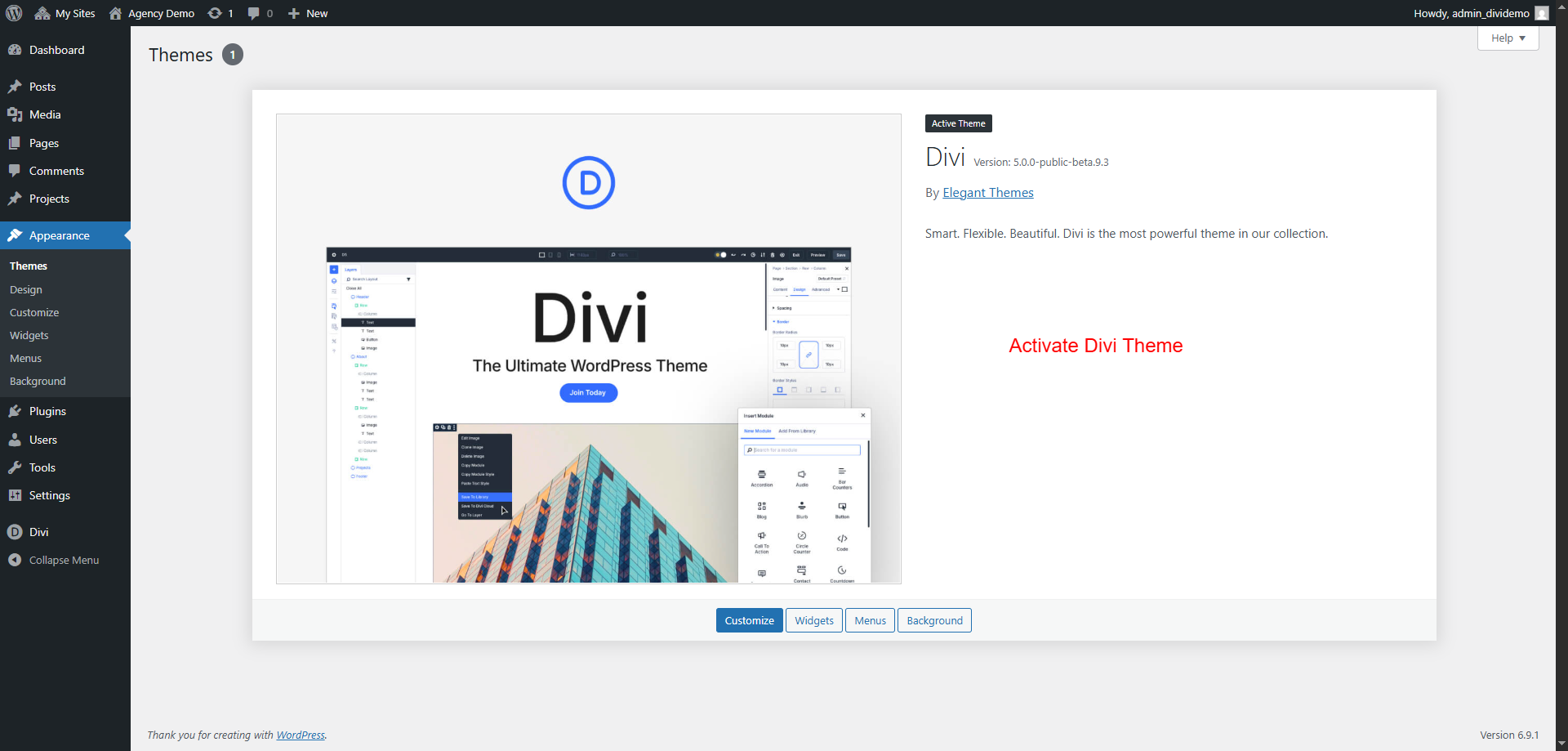
Step 1 – Activate Divi Theme
- Login to your WordPress Dashboard.
- Go to Appearance → Themes.
- Click Add New.
- Click Upload Theme.
- Upload the Divi Theme ZIP File.
- Click Install Now.
- Click Activate.
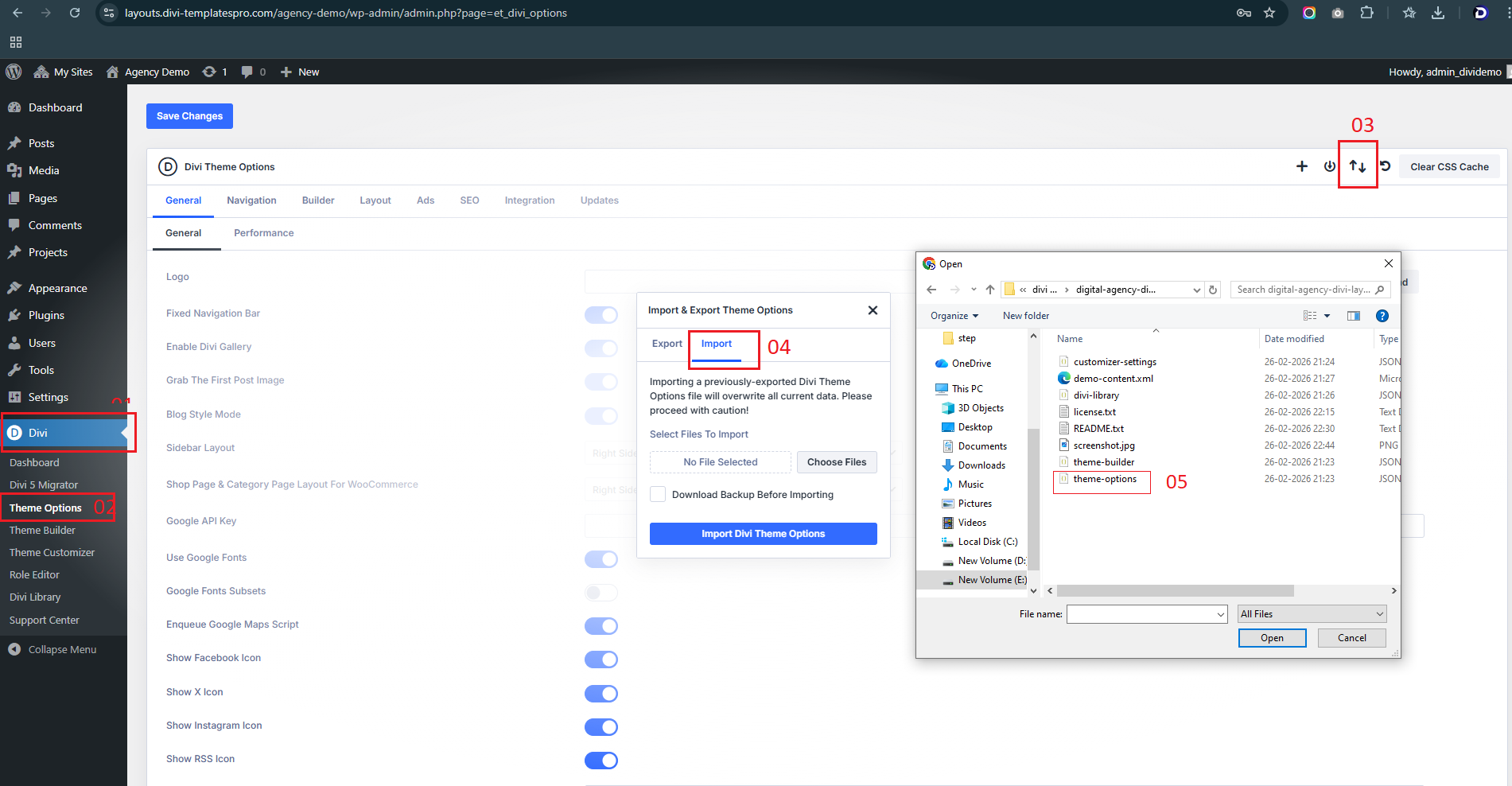
Step 2 – Import Theme Options
- Go to Divi → Theme Options.
- Click the Portability Icon (Import/Export button).
- Click the Import tab.
- Click Choose File.
- Select the theme-options.json file from the downloaded package.
- Click Import Divi Theme Options.
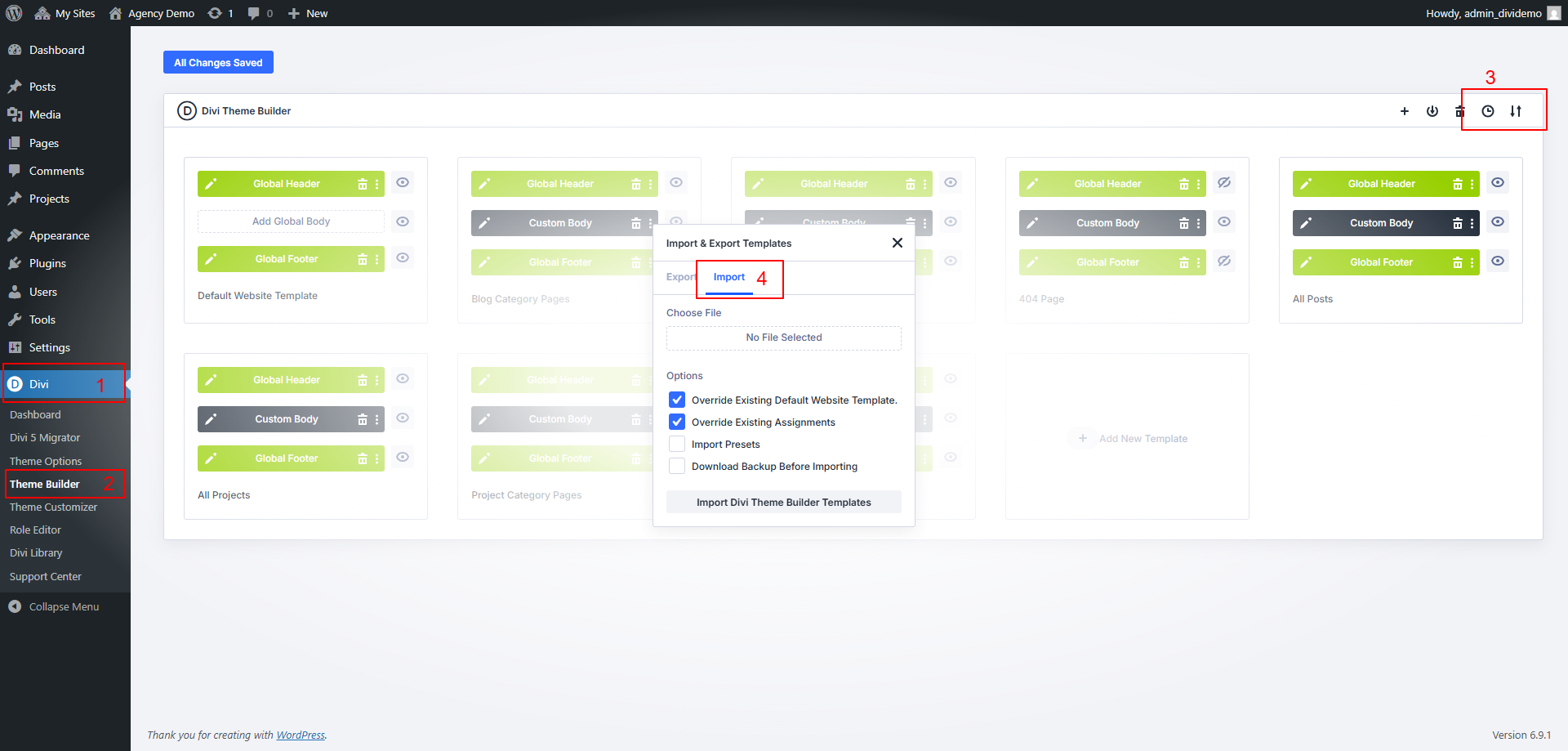
Step 3 – Import Theme Builder Templates
- Go to Divi → Theme Builder.
- Click the Portability Icon (Import/Export button).
- Click the Import tab.
- Click Choose File.
- Select the builder.json file from the downloaded package.
- Click Import Divi Theme Builder Templates.
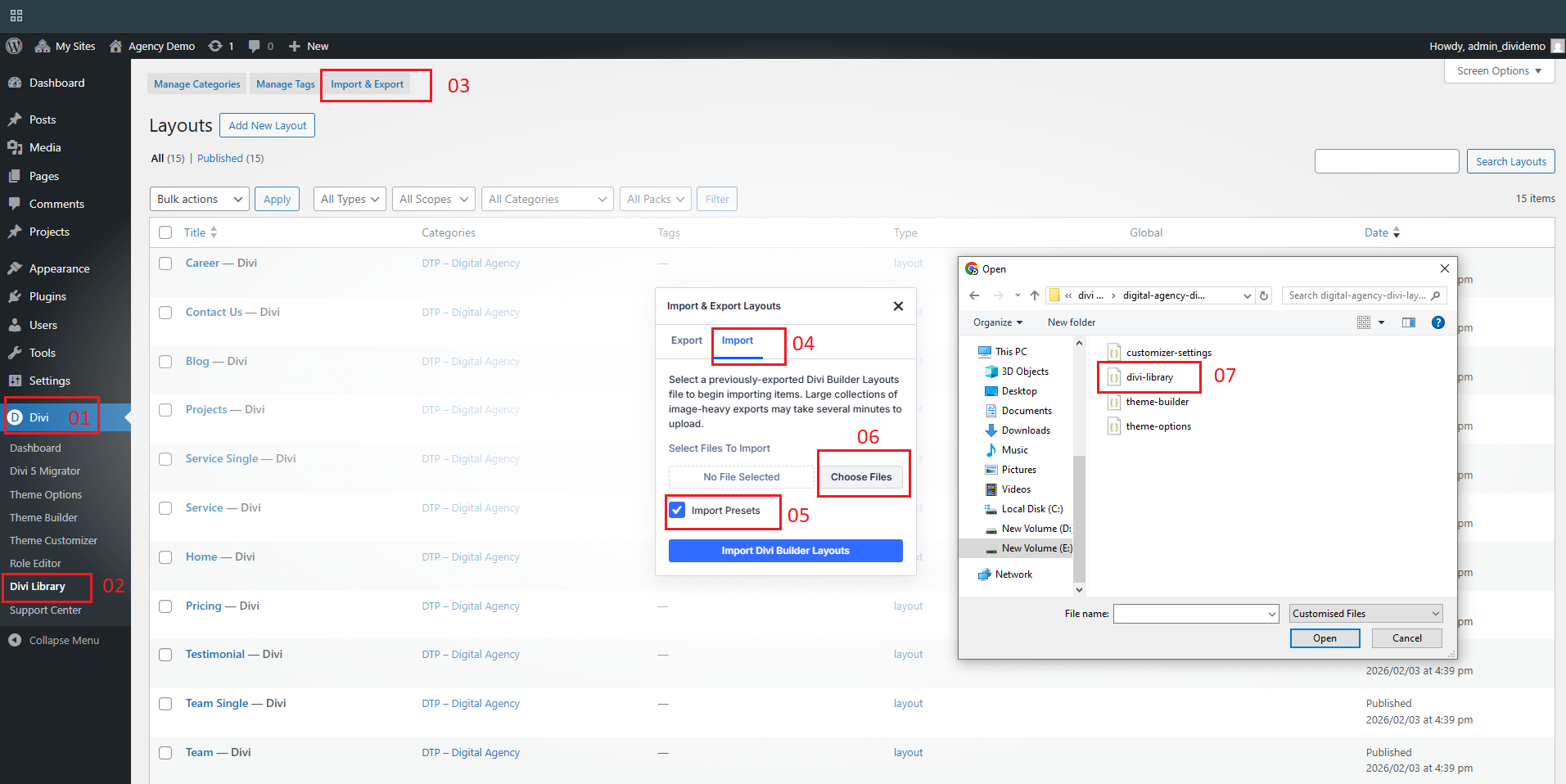
Step 4 – Import Divi Library Layouts
- Go to Divi → Divi Library.
- Click Import & Export.
- Click the Import tab.
- Enable the Import Presets option.
- Click Choose Files.
- Select the divi-library.json file from the downloaded package.
- Click Import Divi Builder Layouts.
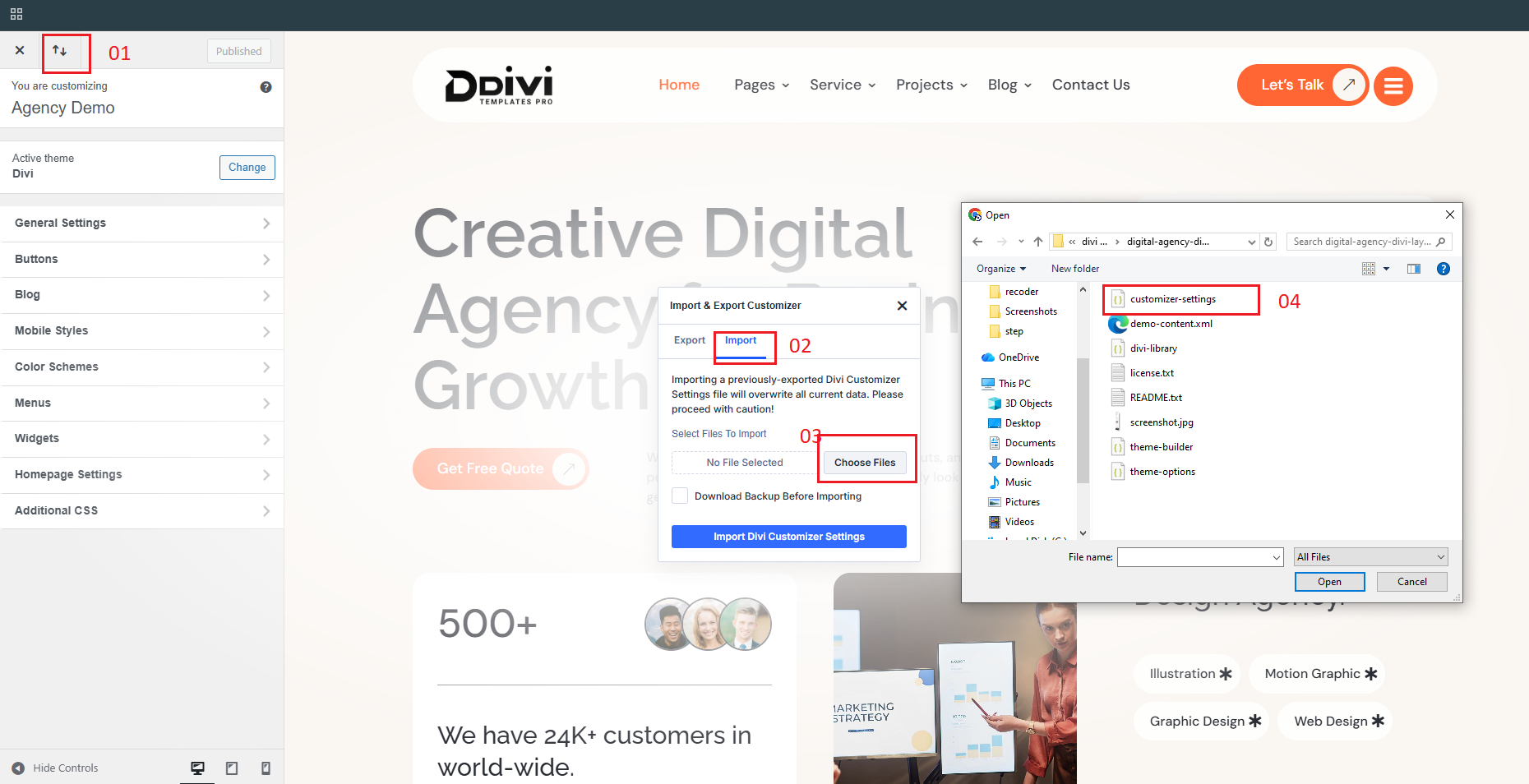
Step 5 – Import Theme Customizer Settings
- Go to Divi → Theme Customizer.
- Click the Portability Icon (Import/Export button).
- Click the Import tab.
- Click Choose File.
- Select the customizer-settings file from the downloaded package.
- Click Import Divi Theme Customizer Settings.
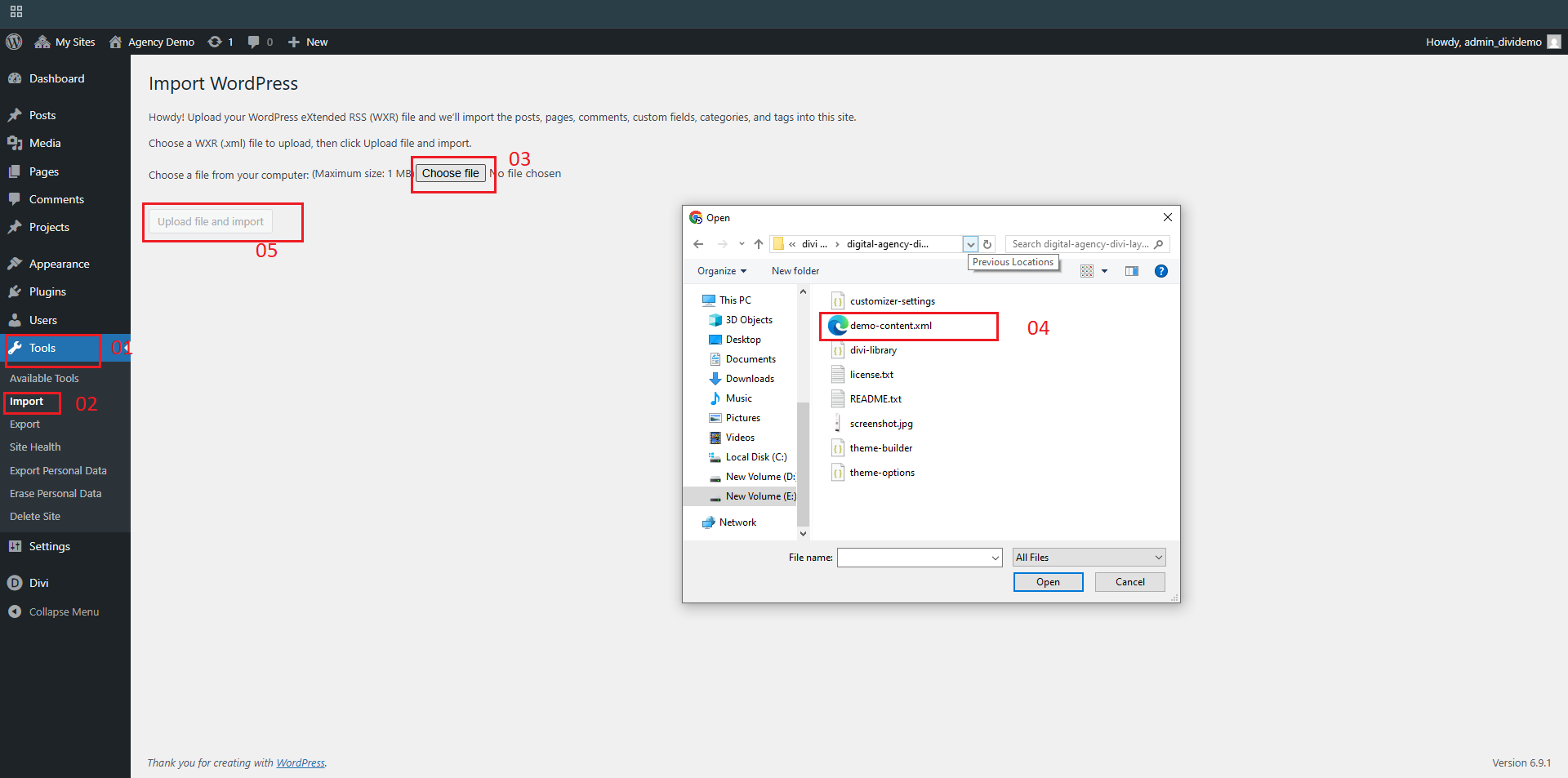
Step 6 – Import WordPress Content
- Go to Tools → Import.
- Under WordPress, click Run Importer.
- Click Choose File.
- Select the content.xml file from the downloaded package.
- Click Upload File and Import.
Template Successfully Installed
Congratulations! Your Divi Template has been successfully installed and imported.
Your website should now look similar to the demo website. You can start customizing the template using the Divi Builder by editing text, images, colors, and layout sections according to your needs.
If some images do not appear correctly after import, you can easily replace them with your own images from the WordPress Media Library.
If you need any help with template installation or setup, feel free to contact our support team.
Support Email: support@divi-templatespro.com